
How the three types differ
| Type | Main purpose | Also check |
|---|---|---|
| Mod | Add features or change gameplay | Game version, loader and dependencies |
| Resource pack | Replace textures, sounds and other resources | Enable it in game; order affects the result |
| Shader pack | Change lighting and rendering | Needs compatible shader support and selection in game |
A mod that provides shader support is still a mod. Files sharing ZIP or JAR extensions are not interchangeable.
1. Get the base game running first
Prepare a matching game and loader. If a mod needs Fabric, Forge or another loader, prepare that version through the instance runtime actions. Dropping a mod into a vanilla instance does not automatically configure a loader.
Launch once, back up important worlds, then exit before changing files.
2. Search Modrinth
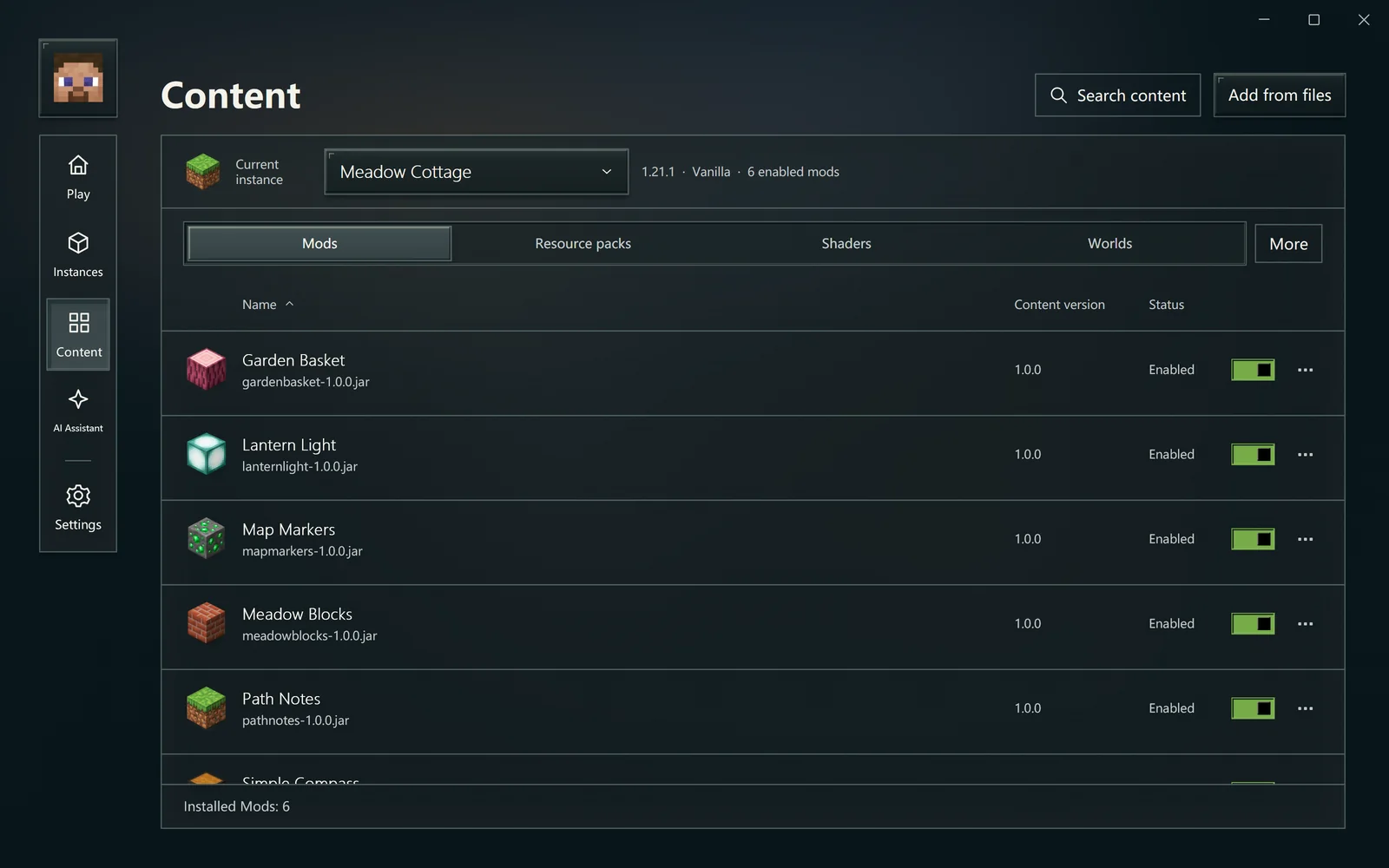
Open Content, check the instance and search by name or keyword. The current online source is Modrinth. Search also finds installed local content.
Read the project description and actual version candidates, checking Minecraft and loader versions. If no recommended match exists, do not pick the newest file at random.
3. Review the complete install list
After selecting a version, review the item, required dependencies and conflicts. Distinguish new content, reuse, enabling an existing file and replacing a tracked version before confirming.
Do not remove required dependencies just to complete the list. Cancel and check the project instructions if compatibility is unclear.
Watch actual progress. A batch may partly succeed; use the result to identify unfinished items.
Import or drop local files
Use Import files or drop trusted files onto the content page. Check the detected type, destination and list before adding. The source remains.
A different file with the same name needs conflict handling. Do not bypass it by overwriting files manually. An unknown format may be kept without guaranteeing that the game can load it.
Enable, disable and select in game
A list switch controls whether a file can be found by the game. Resource packs and shaders still need in-game selection. Pack order, shader support and graphics hardware can affect the result.
For troubleshooting, disable a clearly related mod first so it remains available to restore. Avoid changing many unrelated things at once.
Update content
Check for updates from content actions, select items, review exact target versions and dependencies, then apply. Review again after changing the selection.
Pinned items do not join normal updates automatically. Local sources, unidentified sources and failed checks are reported separately; they do not all mean “up to date.” CurseForge has no default online updates at present.
Remove and recover
Check the instance and item before removal. Removed content is kept in the launcher's content recovery directory, with its location in operation details. Worlds and configuration are not deleted by that action.
The separate Rodel UI mod
Rodel UI is an optional in-game interface experiment. Its current project targets Minecraft 26.3, Fabric and Java 25. The game interface and launcher window are separate; installing the launcher does not automatically add it to every instance.
When a matching release file is available, check the game version and loader, then add it to a matching instance as a normal mod. It preserves the game's real settings and save flow and does not restyle every third-party configuration screen.
If the game stops loading
Keep the complete error, game and loader versions, and the recent change list. Follow Launch problems, or ask the AI assistant to explain the evidence first. Reinstalling everything is usually not the first step.