
Before you begin
Open an installed copy of RMCL, leave free disk space and connect to the network when downloads are needed. For installation steps, read Install and prepare.
Start with a vanilla release. Once it opens successfully, you can try mods and other setups.
1. Add and select an identity
Open the avatar at the upper left, add an account, then explicitly select the identity for this launch.
- Microsoft account: for an online identity with available game entitlement, subject to the current application configuration and service access.
- Local account: for supported local scenarios; it does not replace game entitlement or server authentication.
- External account: for an existing compatible third-party authentication service.
Read Account management for details.
2. Create an instance
Choose New vanilla instance on Home, or open Instances in the left navigation.
- Give it a clear name, such as “Vanilla Survival.”
- Choose a Minecraft version. If unsure, start with a release.
- Check the destination and the content to prepare.
- Start creation and wait for the task result.
An instance is the game space for this setup. Create another one later for a different mod combination.
3. Wait for all preparation steps
A task may prepare the version, game resources, loader and Java in sequence. A single file reaching 100% is only that file's progress. Continue to the overall task result.
After interruption or cancellation, check this instance for a continue or retry action. Copied or downloaded content may remain; you do not need to create a second instance with the same name immediately.
4. Select the instance and launch
Return Home, select the new instance, check its name, version and current account, then choose Launch game.
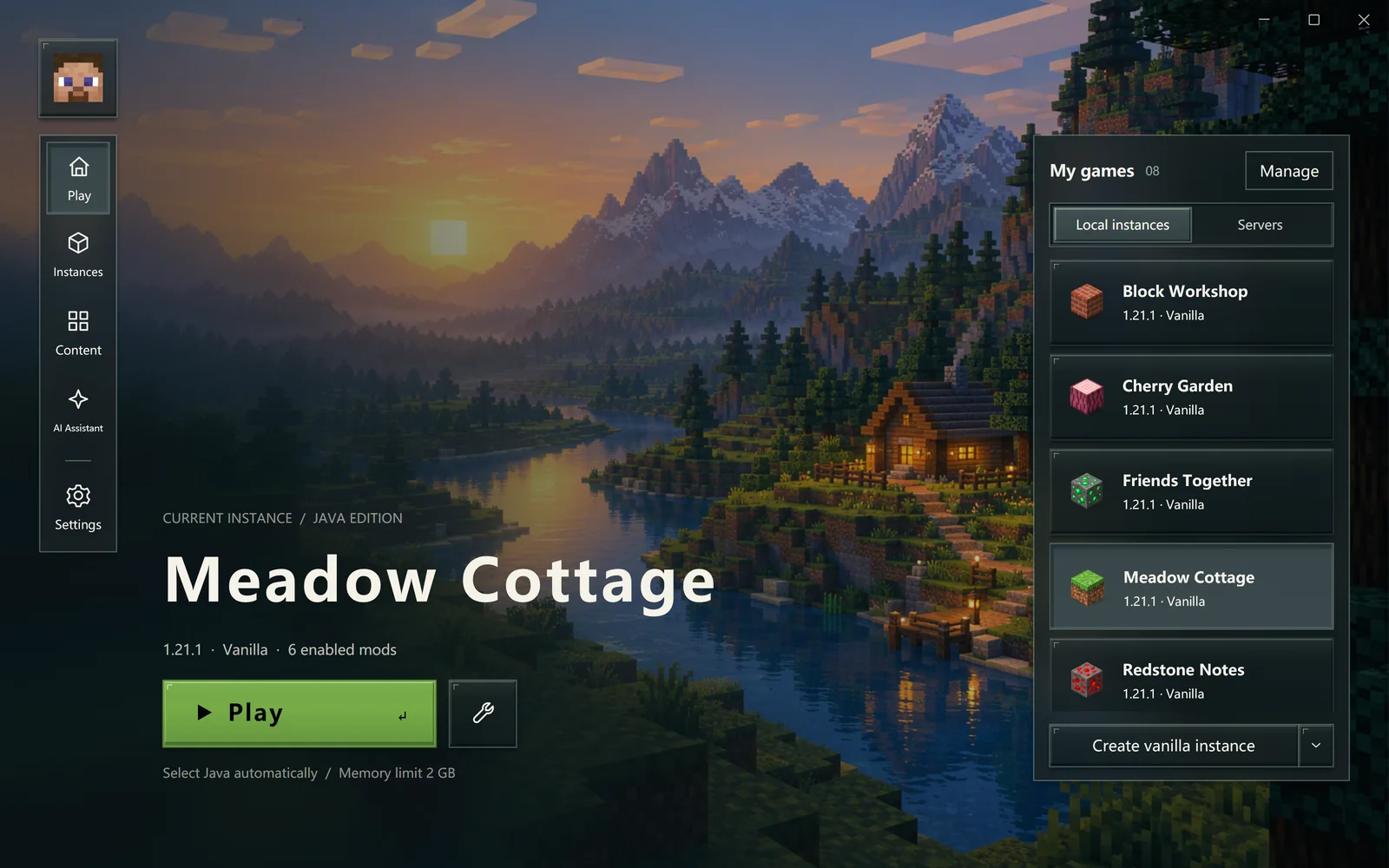
Check the selected instance and identity before launching.
The launcher may prepare files and then wait for a game window. A visible window does not mean the menu or world has finished loading. Watch the game itself.
5. Create a world in the game
Use Minecraft's menus to create a world, open a save or join a server. A new world without important progress is a useful place to learn movement, inventory and exiting.
Use the game's save and quit action and wait for saving to finish. You can then return to Worlds and backups.
If you get stuck
For downloads or Java, read Launch problems. If a friend gave you a package file, use Modpack import. For an explanation of a message, keep the original error and ask the AI assistant.