
Ask your friend three questions first
Confirm the server address, Minecraft version and any required modpack or mods. The server is provided by its operator. This page manages the client used to connect, not server creation or hosting.
Java Edition compatibility and authentication requirements depend on the actual server.
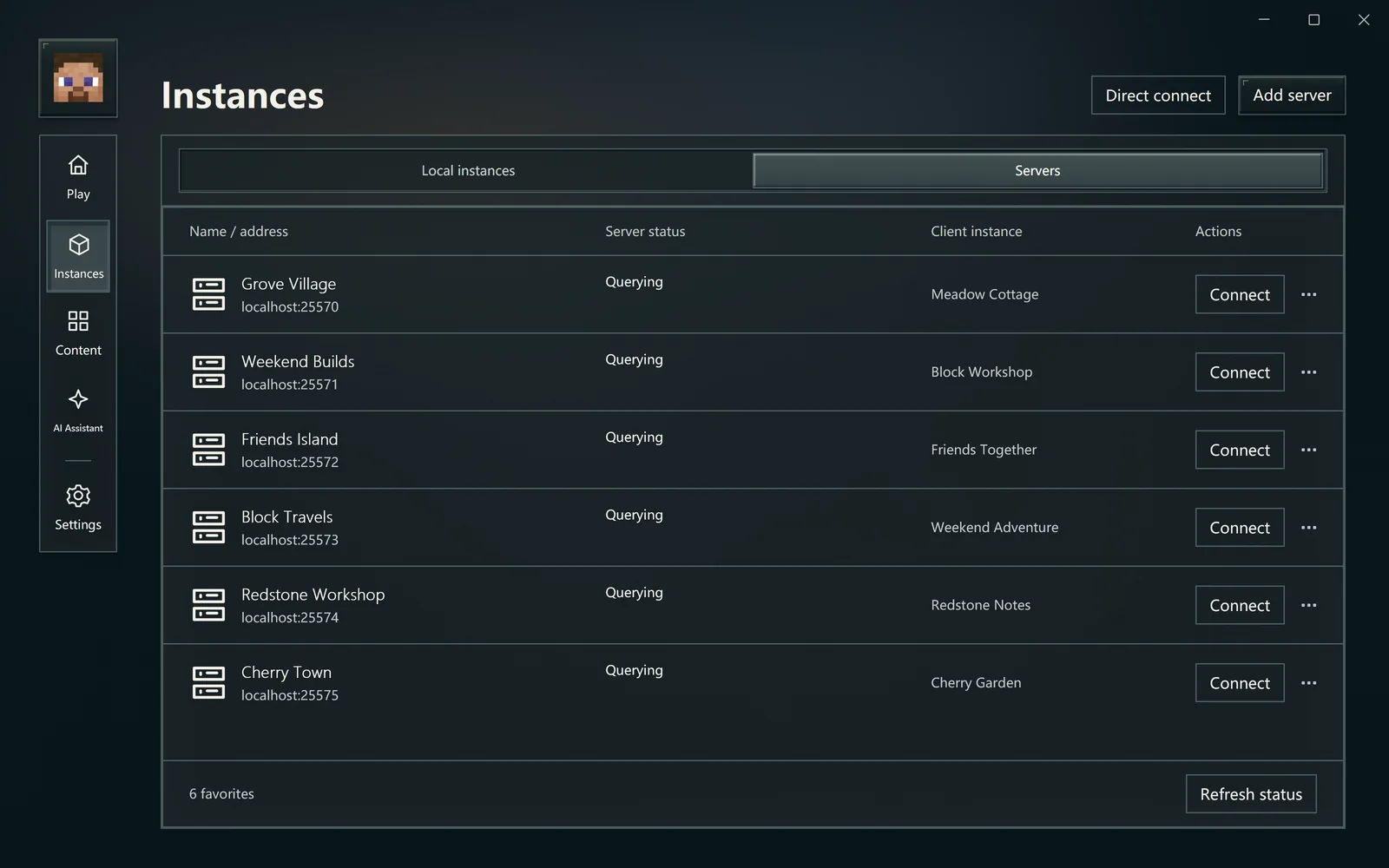
Save frequent destinations and choose a matching game setup.
Save a server
Switch Home to Servers and choose Add server.
- Enter a recognizable name, such as “Woodland Lodge.”
- Enter its domain or IP. Include a port if supplied, such as
play.example.com:25565. - Save and refresh its status.
- Use Edit if the address changes.
Enter the game server address, not a modpack download link. The example domain is not a playable server.
Favorites are stored by the launcher. They do not automatically rewrite Minecraft's multiplayer list.
Choose a matching instance
When connecting, select an instance matching the server. If it needs specific mods, prepare the client package supplied by the operator. Renaming an instance does not make its version and mods compatible.
You can remember an instance as the server's preferred choice. A normal association only remembers the choice; it does not change game files, versions or worlds.
Association or dedicated client?
| Choice | Useful for | Launch behavior |
|---|---|---|
| Associate an existing instance | One setup used for several destinations | Normal local launch keeps its existing meaning |
| Dedicated server client | A setup mainly used for one server | Default launch connects to the owning server |
Use Manage clients to add an existing client or create one. Moving a local instance under server management does not copy or move files, but changes its management ownership and default connection target. Read the prompt.
A dedicated client can still use Launch normally (without connecting). Choose Convert to local instance when it should no longer belong to that server.
Connect with the intended identity
Check the account for this attempt, then choose Connect. RMCL prepares the game and passes the joining process to Minecraft.
Player counts, latency and icons come from a status query. If that query fails, you can still try connecting. An online result does not guarantee entry: allowlists, identity, versions and networking can still matter.
“Game started” describes the launch stage, not a successful join. Use the game screen and explicit connection messages to confirm.
Interruptions, failures and cancellation
- Preparation fails: inspect missing files, downloads or Java in the task, fix the cause and retry.
- Version or mod mismatch: check the operator's requirements and use the right instance.
- Authentication fails: check the account. For Microsoft application access errors, read Application status.
- Server unreachable or full: read the game message and ask the operator to verify the address and availability.
- After cancellation: wait for the task's final state before retrying. If the game opened, inspect that window first.
Keep the error and ask the AI assistant for an explanation, or follow Feedback and logs.
Does removing a favorite delete the game?
No. Removing it clears the association and returns its dedicated clients to local management, preserving files and worlds. Deleting client files is a separate instance action with its own scope.