
When to create another instance
Vanilla survival, building and modded adventures can each have an instance. Every instance has its own game content, settings and worlds. The launcher reuses suitable shared resources, so you do not need to organize them manually.
Before replacing many mods in your only survival setup, make a copy and try the changes there.
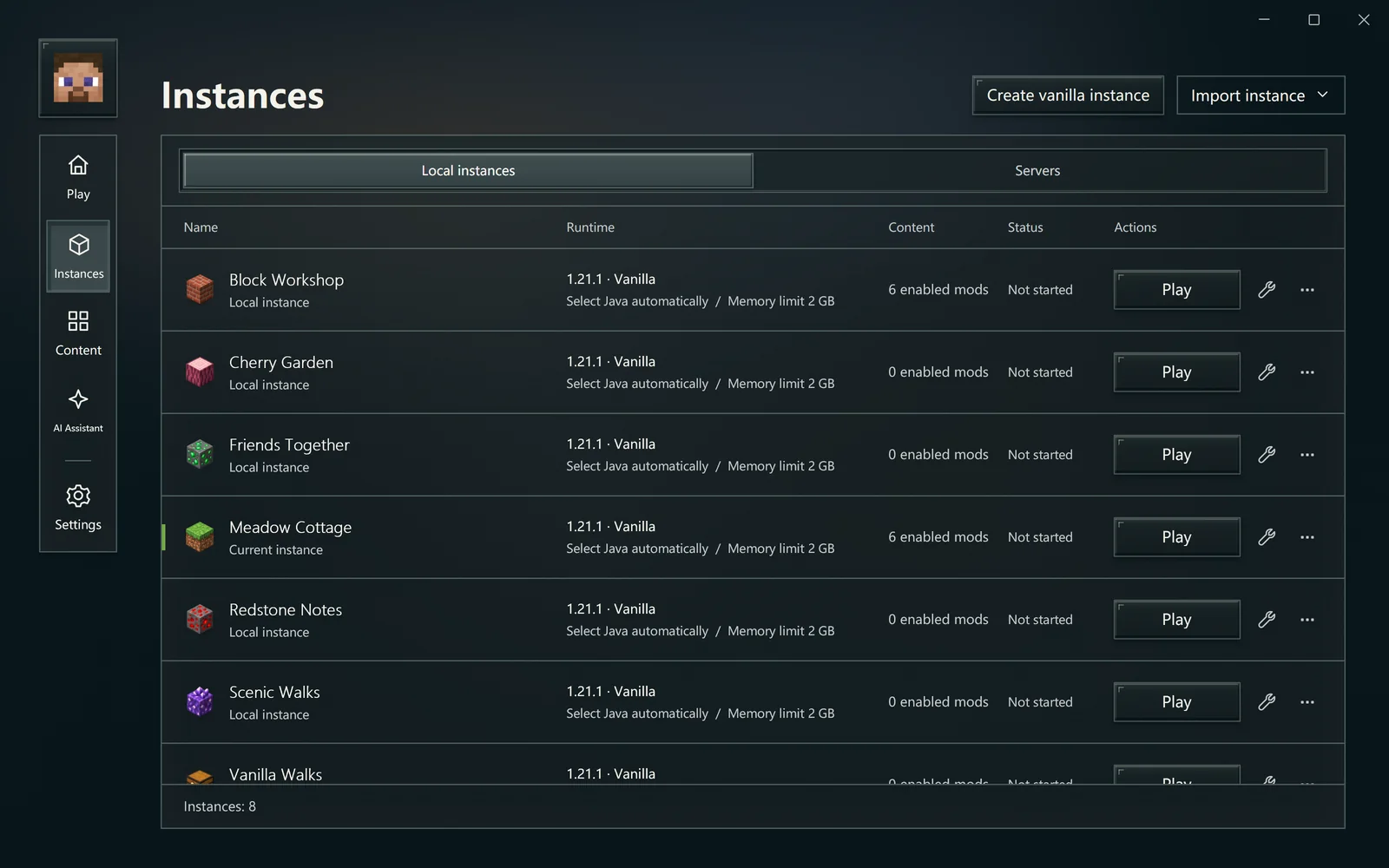
Names and icons help distinguish setups. Still check the target before acting.
Create, import or copy?
| What you have | Route |
|---|---|
| A fresh vanilla game in mind | New vanilla instance |
| An existing working game folder | Import an existing game |
| A .mrpack or CurseForge ZIP | Import a modpack |
| A few mods to add | Content management |
| A setup to preserve while experimenting | Create a copy in instance management |
Find and organize your setups
Open Instances, select a target and use its configuration or management actions. Home is for quickly choosing and launching; the instance page helps compare several environments.
Management actions include renaming, changing an icon and opening the game or version folder. Icons can be PNG or JPEG files up to 4 MiB. RMCL stores a copy and leaves the original image unchanged.
Use names describing a purpose, such as “Woodland Survival,” “Build Practice” or “Friends Together.”
Create a complete copy
Choose Create a copy, check the new name and scope, then start. This copies game content, worlds, configuration and the selected version, safely reusing shared dependencies while preserving the source.
Exit the game normally first so files are no longer changing. Launch the copy after the task finishes. Later progress in each copy is independent and does not synchronize automatically.
Configure one instance
Use instance configuration for its Java, memory and launch options. Global settings supply defaults; an instance override handles a special requirement. Restoring inheritance uses the global value again.
Confirm changes as shown on the page. If only one instance fails, check its overrides before changing defaults for every game. Runtime preparation and replacement also belong to the instance's related actions. Back up first and read the actual task.
Back up and restore all game content
Back up all game content includes the instance's worlds and configuration. Shared dependencies stay in the data folder. Exit the game first; a running game cannot provide a guaranteed consistent snapshot.
To restore, select the correct record and check its date. Restoration overwrites files included in the backup and preserves other files; a safety backup and rollback location are created first. This does not strictly reset the entire folder to an earlier moment. For one saved game, use world backups.
Exporting a modpack is different
A modpack shares a setup and configuration. The current Modrinth export in the interface does not include worlds, Java or shared game dependencies. It is not a save backup. Check the included files and the content authors' requirements before sharing.
Unregister or delete files
Read the confirmation scope:
- Removing registration keeps game files, worlds, backups and shared dependencies.
- Deleting instance files removes content owned by this instance, including worlds and configuration. Retained backups and shared dependencies are handled as described in the prompt. This deletion cannot be undone.