
RMCL is a Windows launcher PoC for Minecraft: Java Edition, created to try out the Sprout native UI framework. It covers everyday game management and explores how AI can help new players understand problems, prepare a game and try creative tasks.
You do not need to learn the command line first. Get one game running, then return for the features you need.
Choose a starting point
Add an identity, create a vanilla instance and launch your first game.
Copy an existing setup into RMCL, keep the source and check your worlds.
Connect a model, ask a specific question and understand operation permissions.
Start from a template, check the 3D view and optionally ask AI to help.
Three names to know
An account is the identity you use for a launch. It affects online identity and your character on a server. It is not a world, and adding one does not grant a game license.
An instance is a separate game setup with its own version, mods, settings and worlds. “Woodland Survival,” “Build Practice” and “Friends Together” can each have an instance.
A world is a saved game. One instance can contain several worlds. Back up important worlds before changing versions, mods or instances.
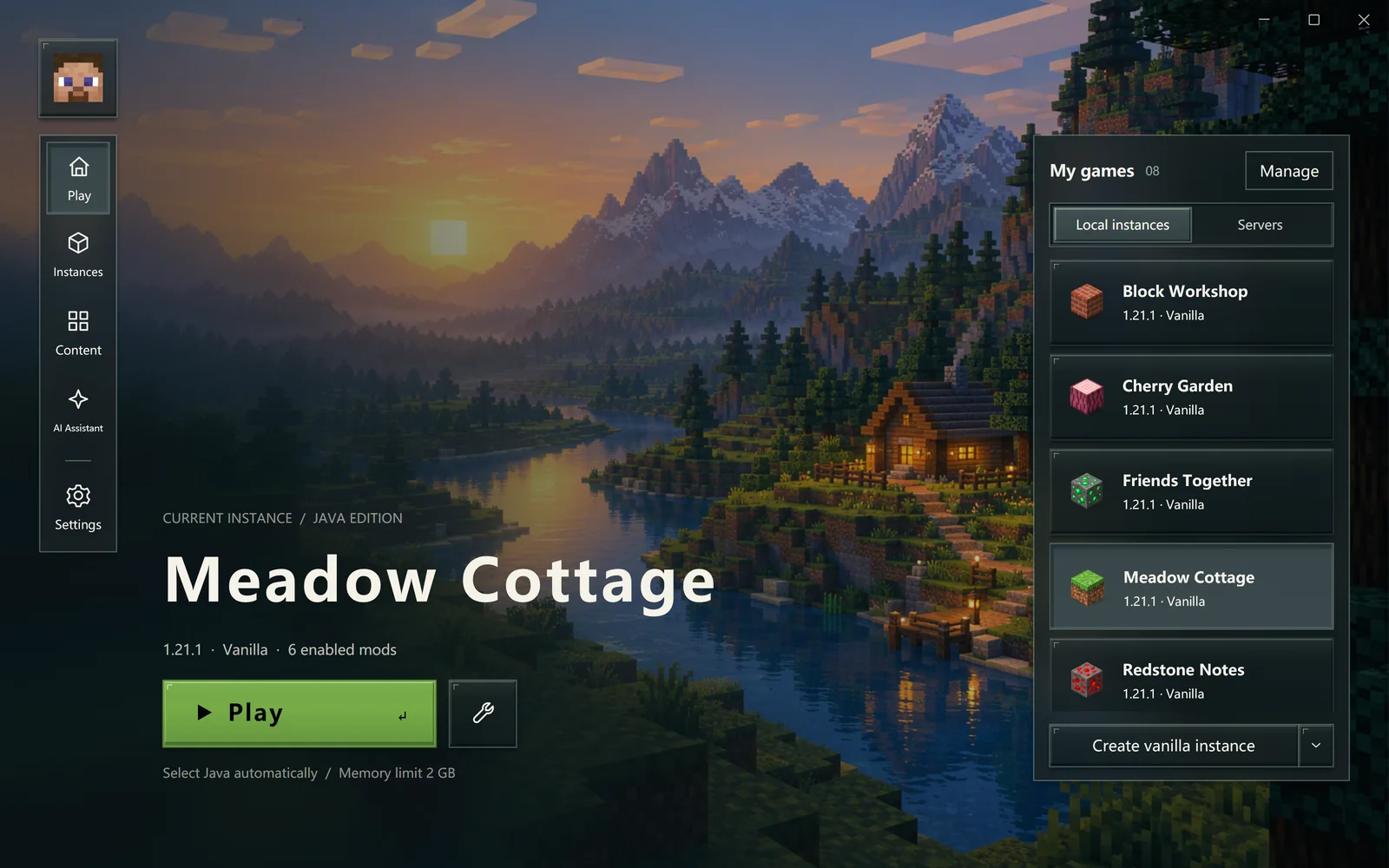
Choose an instance and the identity for this launch before starting.
Find the task you need
| What you want to do | Read |
|---|---|
| Check requirements and installation | Install and prepare |
| Launch for the first time or switch players | First launch, Accounts |
| Organize versions, make a copy or back up | Instances |
| Join a friend's server | Servers and multiplayer |
| Install mods, resource packs or shaders | Content, Modpacks |
| Move or protect a saved game | Worlds and backups |
| Understand errors or ask for help with a task | AI assistant |
| Draw a skin or use reference images | Skin designer |
| Change language, Java, memory or networking | Settings |
| Resolve a game that will not start | Launch problems |
A useful first-time order
- Check for Windows 10 version 2004, build 19041, or later, on x64 or ARM64.
- Read the installation and account notes, then choose a data location.
- Get one vanilla instance running before adding mods.
- Back up important worlds, then try your preferred setup.
- Look up unfamiliar steps here, or ask AI to explain a specific problem.
Using this guide
Pages are grouped by tasks. Search at the top looks through titles and text; on narrow screens, open the menu to see the directory. Names in screenshots illustrate the steps. Your own list will reflect your setup.
For background, read About the project. If something goes wrong, follow Feedback and logs.