Start with one small change
The skin designer opens in its own window. You can draw manually or ask AI to help with the current skin. Changing one jacket's color is an easier first task than repainting an entire character.
Open it from the account avatar menu at the upper left. Manual editing does not need a model service or Microsoft sign-in.
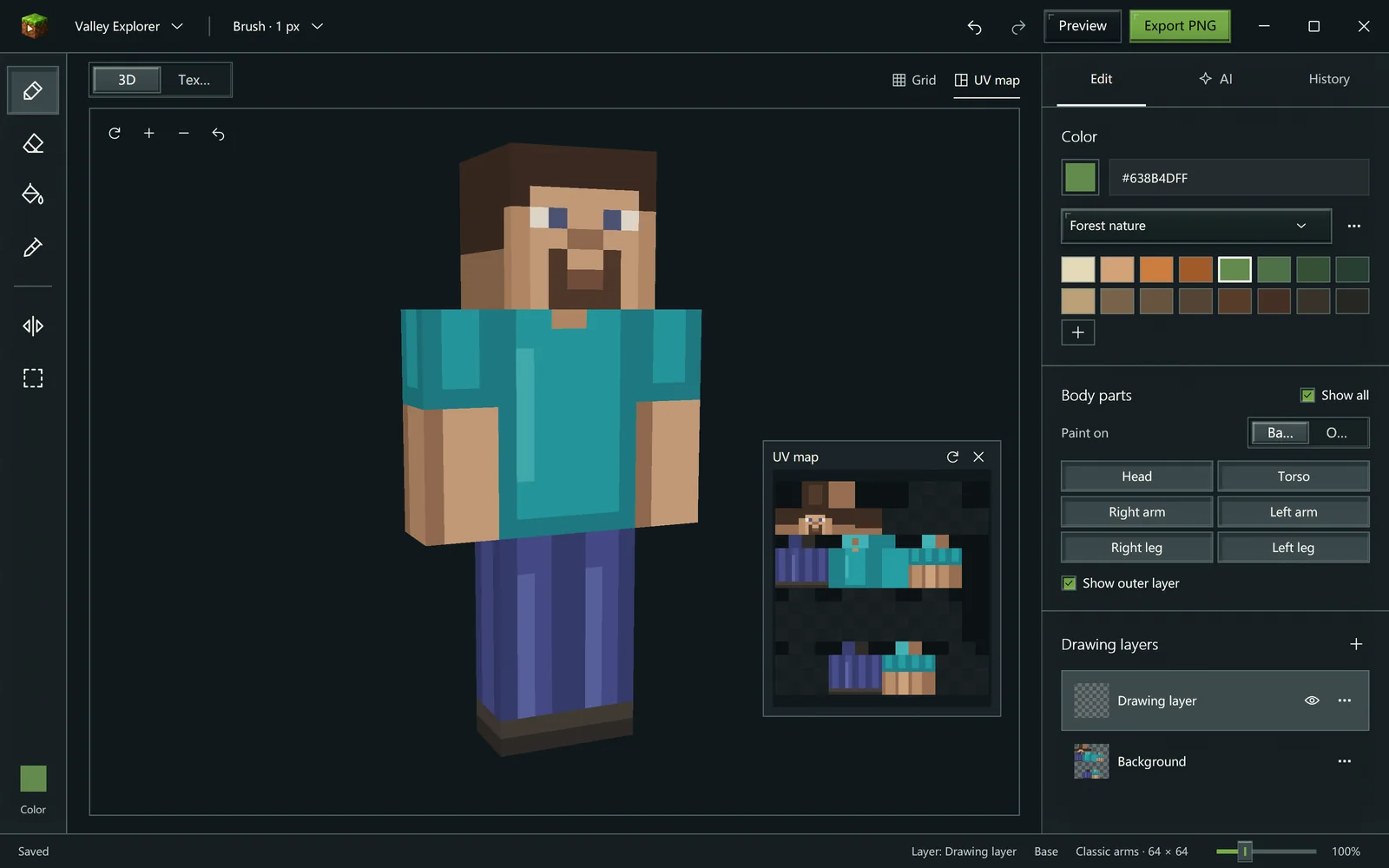
Rotate the character while working to check the front, back and sides.
1. Create or import
Use the Project menu to create a project and choose its name, template, arm model and texture size. You can also open an existing project or import a PNG.
- Classic / Slim arms: controls the arm shape. If a PNG does not identify its model, confirm it yourself.
- 64×64: suitable for a standard Java account skin.
- 128×128: for HD texture work; it cannot be uploaded directly as a standard Java account skin.
- Older 64×32 PNG files can be converted to a modern layout during import.
Read the prompt before replacing current content. Import can replace the model, size and layers, with undo available through history.
2. Know the views and tools
Rotate and zoom the 3D view to see where you are painting. Flat and UV views help with edges, small regions and seams. Use Reset view if you lose your orientation.
| Tool | Useful for |
|---|---|
| Brush | Adding pixels in strokes |
| Eraser | Removing content where transparency is allowed |
| Fill | Changing an area's color |
| Color picker | Reusing an existing pixel color |
| Selection | Limiting an area, copying, cutting or moving |
| Mirror | Painting corresponding parts symmetrically |
3. Keep options with layers
A body's Base / Outer surface and the editable Paint layers are different concepts. The first describes the skin surface; the second stacks editable content.
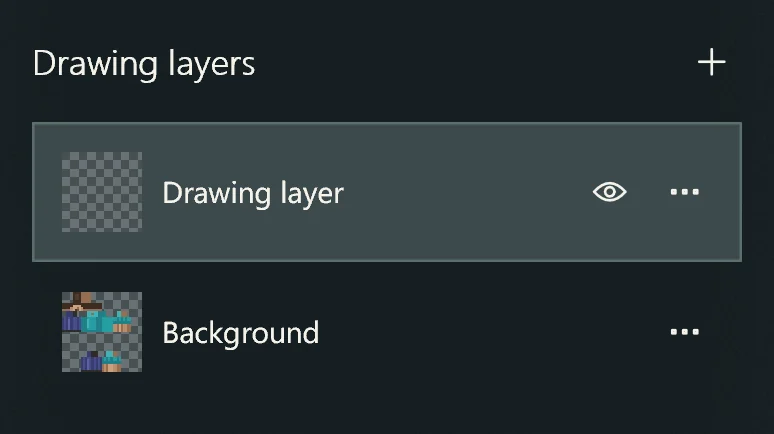
Add a paint layer above Background for edits you can erase or hide.
Name separate layers for hair, clothing or accessories. Hide them to compare, adjust opacity or reorder them. Copy a working layer before a large change if you want the original.
If paint does not appear, check whether the active layer is hidden, locked or fully transparent. Also check the selection, body part and Show outer layer option.
4. Manage useful colors
Choose from built-in palettes. Built-in palettes are read-only; make a copy to rename it, add the foreground color, edit colors or remove them.
Custom palettes stay on this computer across projects and restarts. Deleting a palette does not remove pixels already painted.
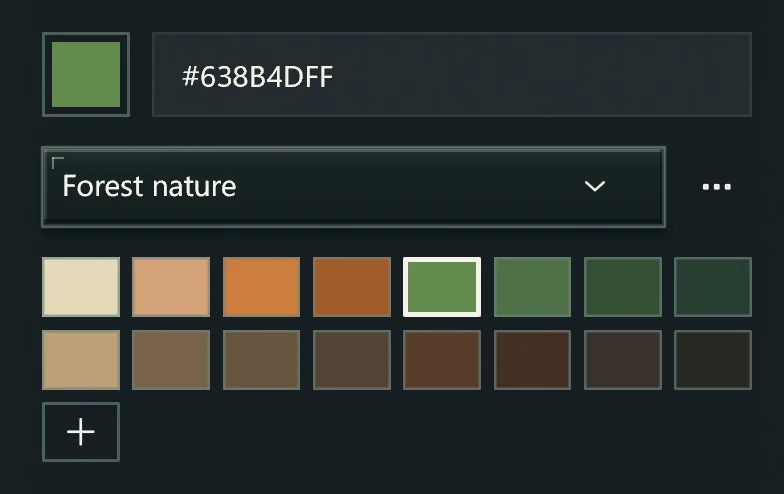
Choose a color. Copy a built-in palette before changing its colors.
5. Ask AI to help with this skin
Add a working model in the launcher's AI settings, then open the designer's AI panel.
Give it a clear, limited goal:
Make this jacket dark green and keep the face and hair. Use separate clothing layers and check that the back is consistent.
Use this image's hairstyle and colors as a reference, simplified into a Minecraft pixel skin. Keep the current proportions and avoid too many tiny decorations.
Add or paste PNG, JPG or WebP reference images, up to three per turn. The selected model's actual vision capability determines whether it can understand them.
6. Check and undo
Look at the full character and then the head close-up. Check the top, back, inner limbs and outer-layer seams as well as the front.
Expand the AI tool process to inspect reads, painting and save results. A successful save means the change was stored; you still judge how it looks.
Use History, Undo and Redo to return to a useful state. After interruption, inspect saved changes first. If the result is not yet confirmed, use the original request's recovery action to avoid painting twice.
Save a project or export a PNG
| Action | Purpose |
|---|---|
| Save / saved-state indicator | Check whether current edits are stored |
| Save project as | Keep a separate editable project with layers and history |
| Export PNG | Create a flattened skin image for other tools or a supported upload flow |
| Export as 64×64 | Produce a standard-size image where appropriate; inspect details afterwards |
Export does not upload the skin to an account or install HD support. Use the actual account or game environment's supported skin controls.
If saving fails
If the app says saving failed and a draft was kept, keep the window open, check free space and file access, then retry or preserve an available copy. Closing the window is not proof of saving.
For painting issues, check the layer, surface, selection and color first. For model connection issues, read AI assistant.