
Begin with search
Open Settings and search for language, Java, memory or proxy to locate an actual option. Search does not perform actions for you or search private values.
Valid global edits save automatically. Instance configuration follows its own confirmation and takes priority over global defaults. Most launch settings affect the next launch.
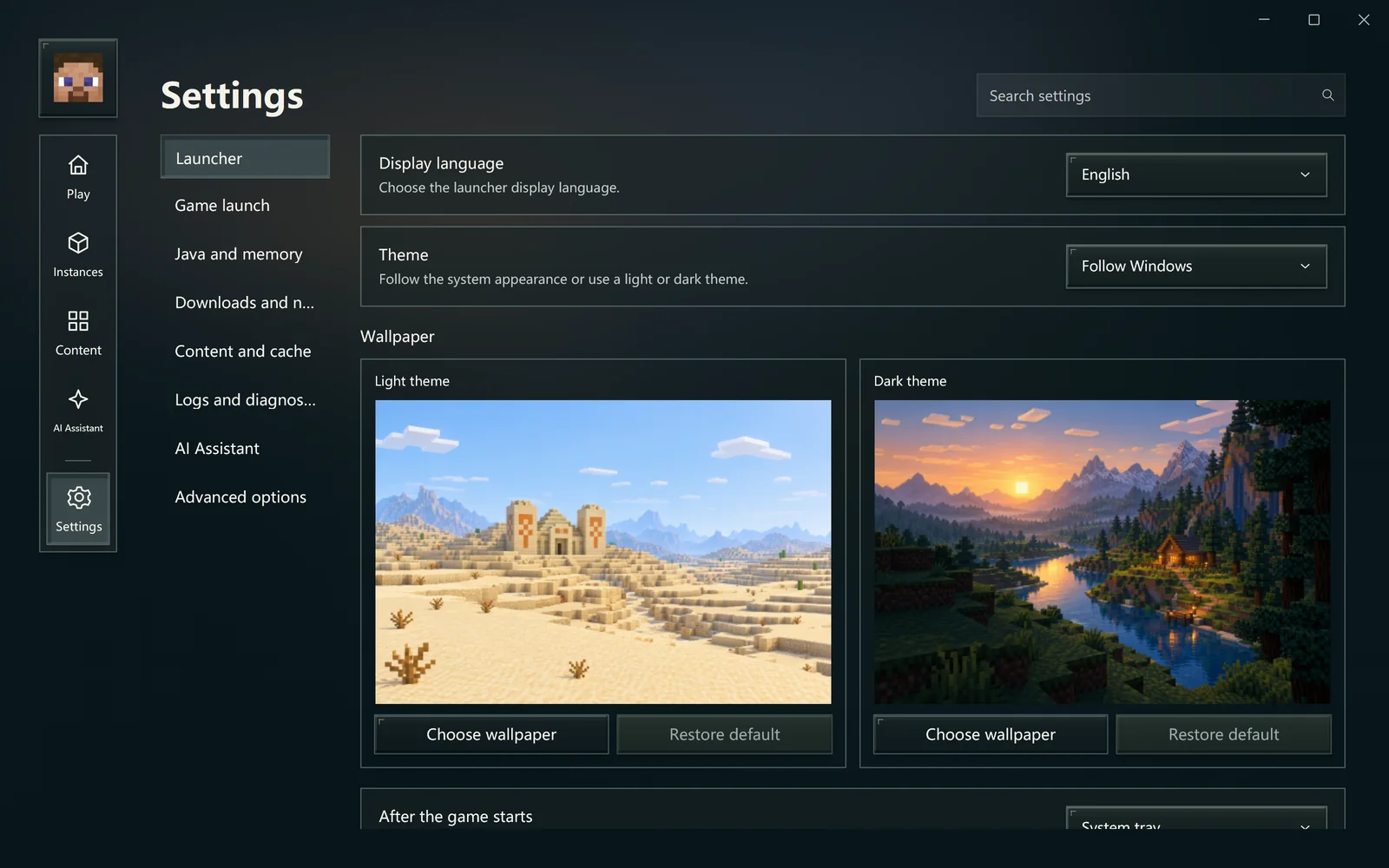
Read the description beside an unfamiliar option first.
Language, theme and wallpaper
In launcher settings, choose the display language, follow the system theme or use light or dark, and select wallpapers for each theme. You can also choose the launcher window's behavior after a game starts.
Java and memory
Different Minecraft versions may need different Java versions. Start with automatic discovery and the instance's preparation result. In Java runtime management, discover local installations, import an existing runtime, download one or choose a default.
An instance's explicit Java choice takes priority. Before removing managed Java, check whether another instance uses it. Unregistering external Java and deleting launcher-owned files have different scopes.
Memory can be allocated automatically from available memory or set manually. More is not always better: Windows, other programs and native resources also need space. Start with a large modpack's guidance and adjust based on actual behavior.
A maximum-memory argument entered under advanced settings may override the ordinary controls. Avoid conflicting values in several places.
Game window and quick entry
Choose fullscreen or window size. Supported versions can use a save-folder name to enter a single-player world directly. Unsupported versions launch normally to the menu.
Quick entry selects a target; it does not skip loading or saving. Multiplayer targets and custom game arguments can also affect the outcome.
The optional Game data bridge is off by default and takes effect on the next launch. It can read supported game state and perform limited actions in your own local world. Servers stay read-only. Read AI assistant for scope.
Downloads and networking
Choose the system proxy, a direct connection or a manual proxy. Adjust download concurrency and timeouts only when needed. Mirror rules are for cases where you know the source and replacement; defaults are a good starting point.
Failure of an optional online service does not make a local instance unusable. After changing a proxy or mirror, retry the affected task rather than deleting game data.
Content, cache and logs
Use the page's usage information to clear recoverable caches. Do not replace cache cleanup with manually deleting the shared dependency directory.
Older-game logging compatibility and output encoding are for collection problems; automatic selection is the default. If text is garbled, keep the original log and confirm its encoding before changing settings. Changes affect subsequent launches.
AI and external tools
Model services, file and network scopes, built-in capabilities and external integrations are in AI settings. Ordinary new conversations default to Safe. Change this under Conversation defaults; existing conversations keep their current mode. New users can start with one model and keep the default Safe mode; read AI assistant.
Built-in tools and skills are supplied with the app. Custom third-party MCP or skill registration is not currently offered. Optional Codex / Claude Code integration is a separate flow with an installation preview.
Advanced arguments and defaults
Extra JVM arguments, game arguments and environment variables are for explicit needs. Leave them empty if unsure. Copying someone else's entire argument list can override existing choices.
Before restoring defaults, inspect the current category's scope. Check instance overrides separately. Do not delete the entire data directory to fix one option.