
Create a Terracotta multiplayer room to invite friends into a singleplayer world. The host runs and saves the world; each friend runs a client on their own PC. For a permanent server address, use server favorites.
Enable multiplayer
Open Settings → Launcher → Multiplayer and turn it on. A Multiplayer entry appears in the sidebar. The option starts off, so you can leave it disabled when you do not need rooms.
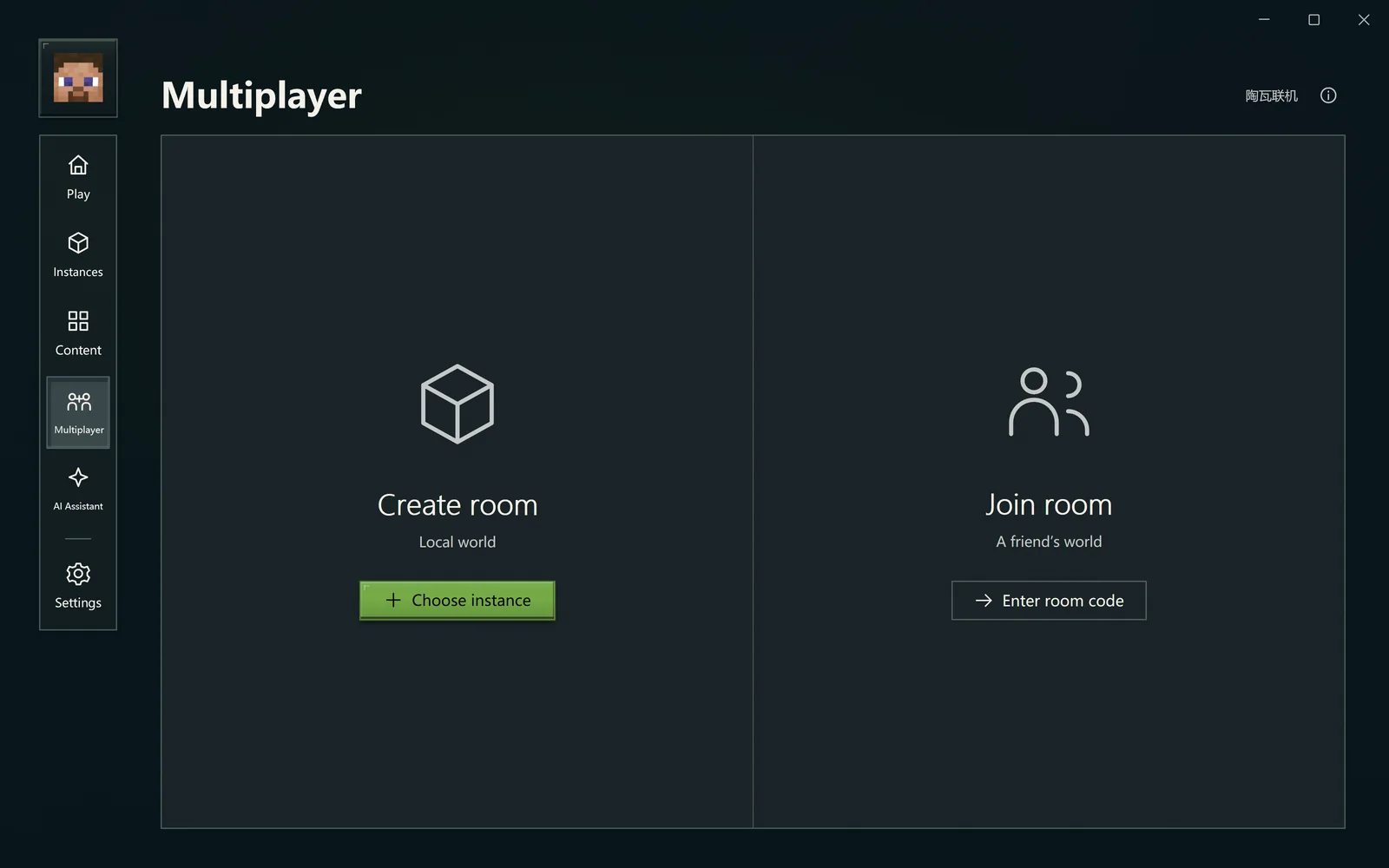
Create a room for your world, or join a friend's room.
Agree on the Minecraft version, loader and mods before starting. A room code establishes the connection; the game environment is prepared separately.
Host a room
- Under Create room, choose Select instance. The instance menu also offers Create room with this instance.
- Select a local instance. You can create a vanilla instance or import a modpack in the same dialog.
- Choose an existing world, or leave Select or create in game selected.
- Enter a room name, then choose Launch game and create room.
- Enter the world. Once the room is joinable, copy its code and send it privately to your friends.
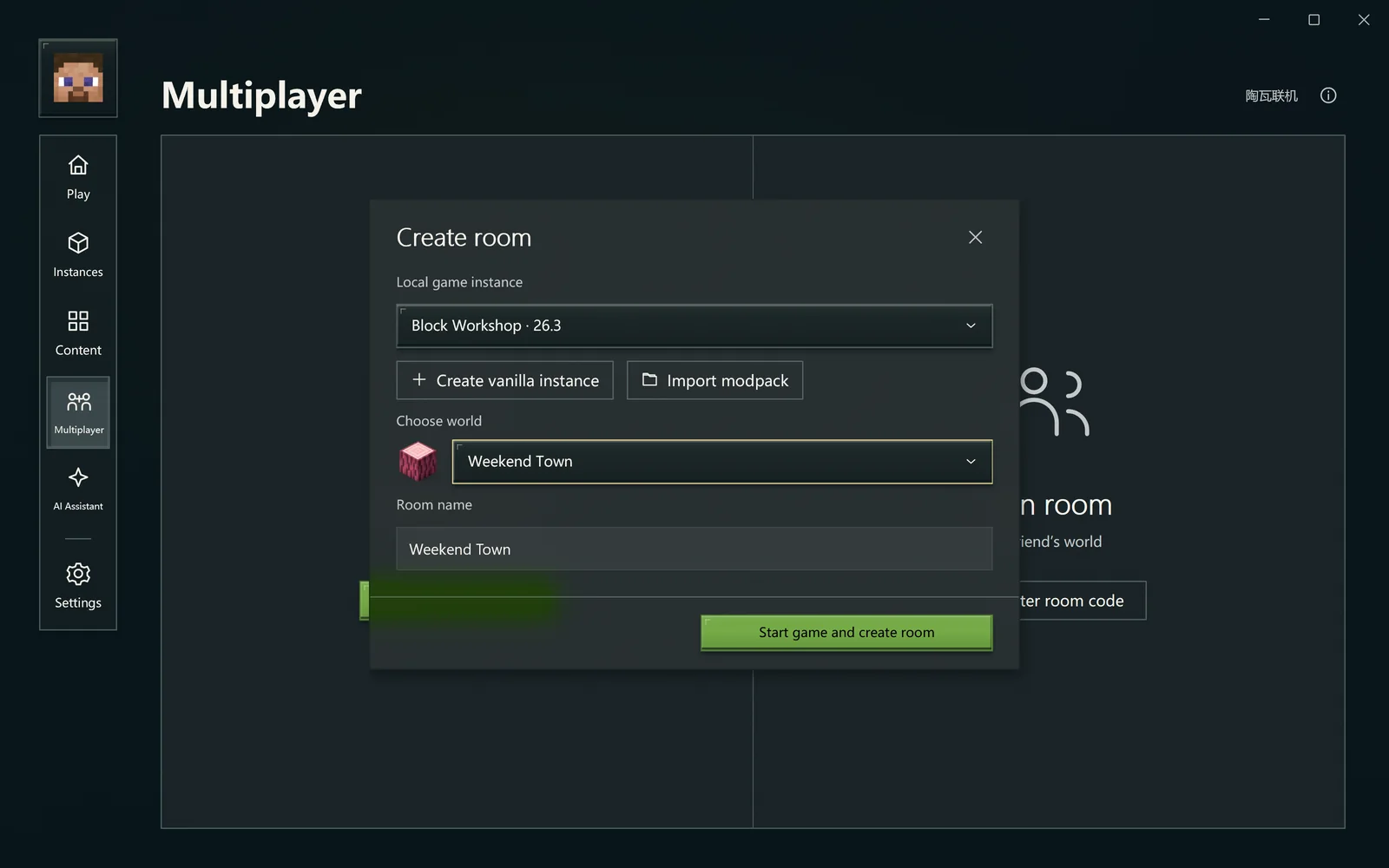
Reuse a saved world or choose one after launching. Saves stay in the host's original instance.
Supported game versions open the world to LAN automatically after you enter it. If the page asks for manual setup, use Open to LAN in Minecraft's pause menu. A game at the title screen is not ready for friends to join.
Join a friend
- Obtain the room code and ask which game version and mods the host uses. Get their modpack too, if available.
- Choose Enter room code and paste it. RMCL can extract a valid Terracotta code from invitation text.
- Select a matching local instance, or create/import one in the dialog.
- Review the environment. With a modpack, check differences and finish downloads or missing-file steps first.
- Confirm. Once the network entry is ready, RMCL launches the client; use the connection address shown by the page to enter the game.
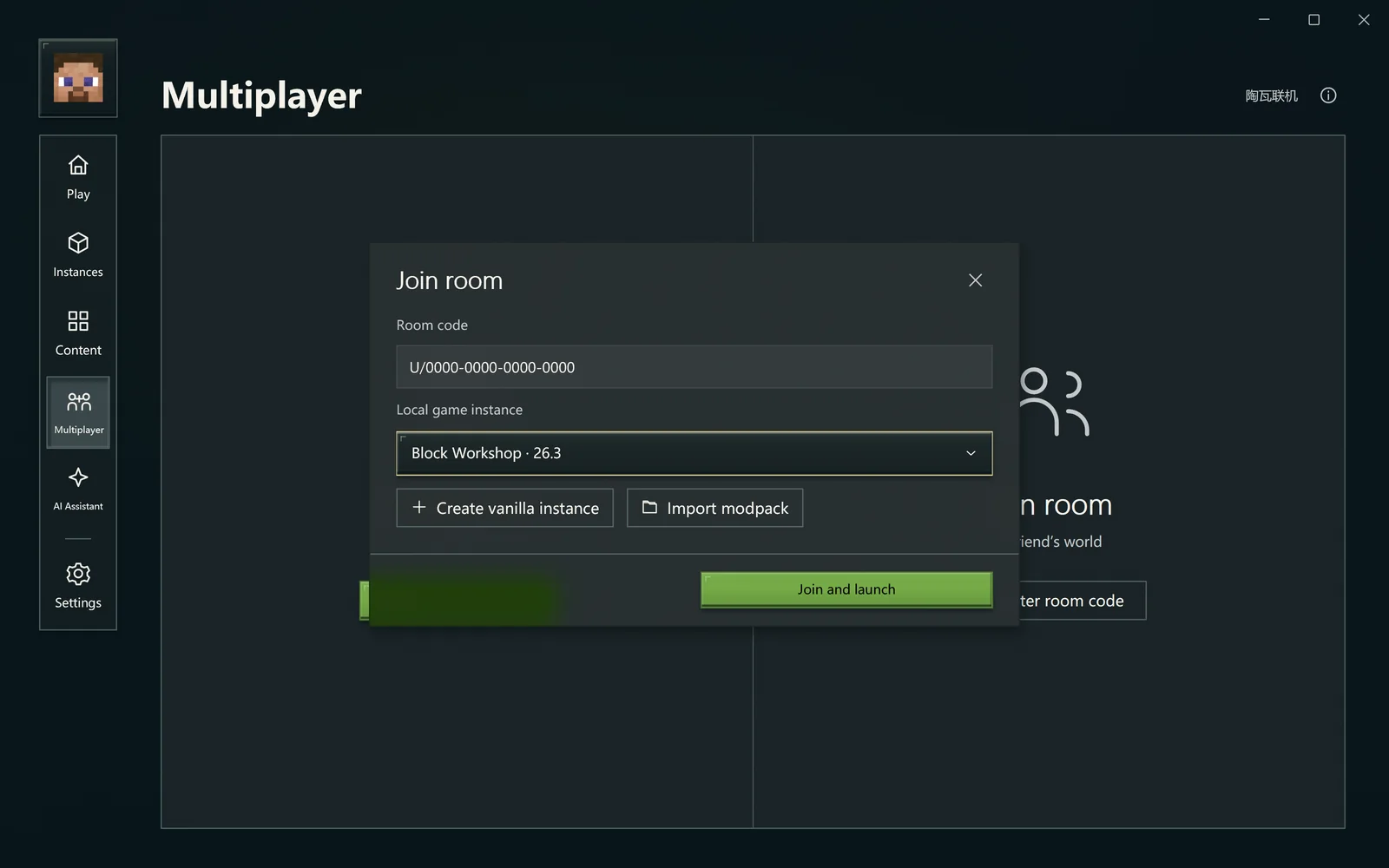
A code contains neither the mod list nor the modpack. Ask the host when you only have a code.
Closing a preparation dialog cancels that preparation and keeps its draft and recoverable data. Reopen it and choose Continue preparation rather than importing a second instance.
Read the room page
The header shows the name, your role, status and end action. Members appear on the left; the selected instance and sharing actions appear on the right. The content shortcut opens that instance's mods.
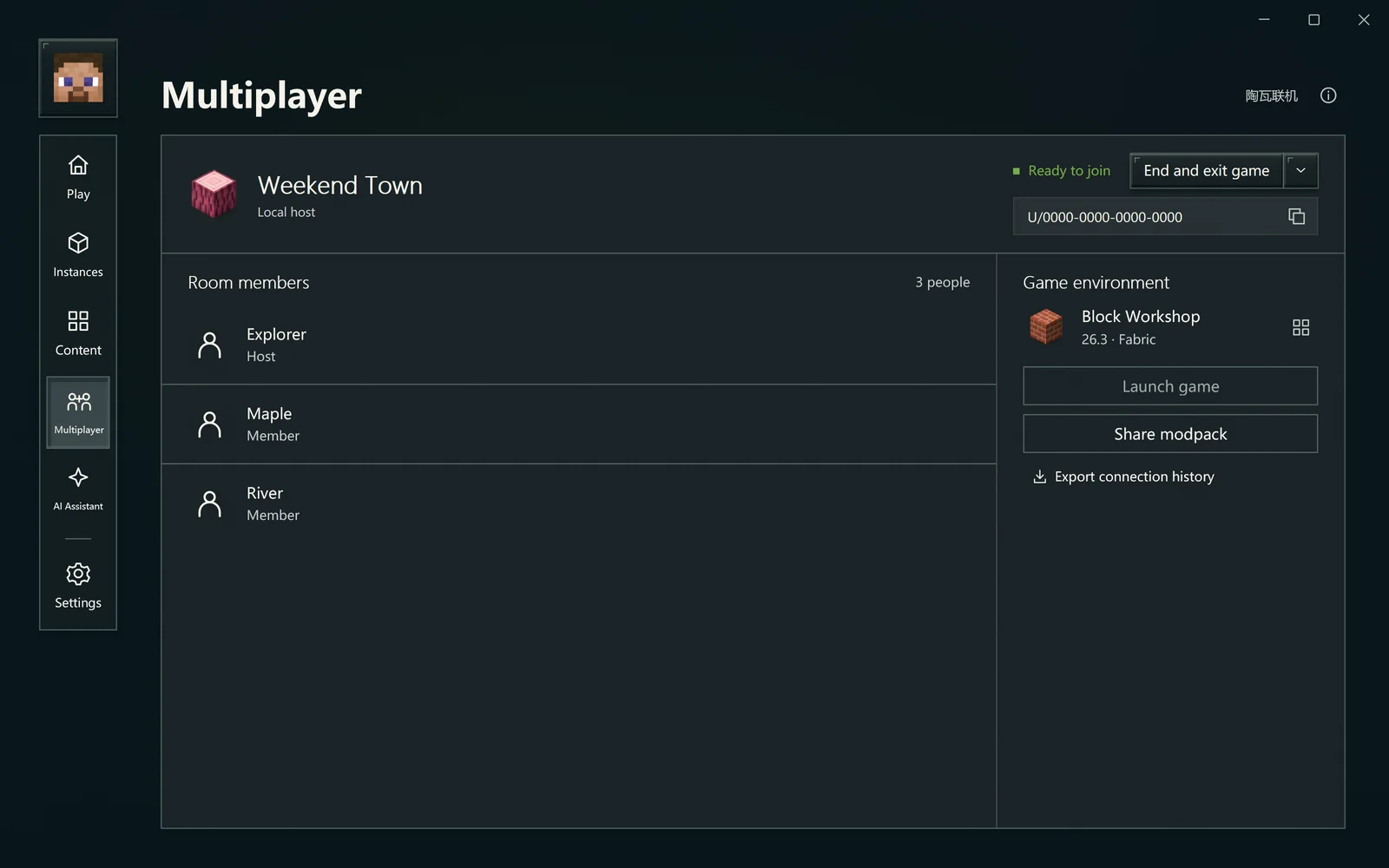
A shareable code appears after the connection and world-opening checks succeed.
| Status | Next step |
|---|---|
| Waiting for a world / not joinable | The host enters a world and opens it |
| Joinable / waiting for friends | Copy the room code |
| Network connected, game rejects entry | Check Minecraft's version, mod or authentication error |
| Disconnected | Keep the game open, retry the room, then reconnect in Minecraft |
| Room ended | Create or join a new room; the old invitation has expired |
Share the game environment
The host can share a modpack from Game environment. Multiplayer exports include references for enabled content and shared configuration/scripts. They leave out worlds, server favorites and personal game options.
Check any excluded local files in the export result and arrange missing items separately. Friends install RMCL's built-in mods through their own launcher. See modpacks for import and export steps.
The mini window
Enable Multiplayer mini window in Settings. An active host gets a compact room window when the main window is minimized or sent to the tray. It provides the room code, members and a return-to-room action.
Restoring the main window hides it. Closing the mini window only dismisses that appearance; it does not end the room. Guests do not get the host mini window.
End a room or keep playing
The main end action is End and exit game, or Leave and exit game for a guest. It requests a normal Minecraft exit. Return to the game if a save or confirmation screen needs attention.
To keep playing alone, open the arrow beside the button and choose Stop multiplayer only or Leave room only. The game stays open. Leaving or changing the hosted world also ends its room.
Turning multiplayer off in Settings asks for confirmation when a room is active. Confirming stops multiplayer and keeps the game running.
Connection problems
First check that both sides use matching game versions and mods. Identify whether the failure happens while connecting the room or entering Minecraft. Windows may ask for firewall permission when a multiplayer component or Java path is first used.
A temporary disconnect triggers recovery attempts and leaves the game running. Reconnect in Minecraft after recovery. If the host supplies an ordinary server address, use the fallback address option.
Use Export connection log for room connection problems. A mod mismatch, kick or authentication rejection also needs the Minecraft log. Remove room codes and private addresses before sharing; see logs and feedback.