
Find your screenshots
Open Content, select an instance, then choose Screenshots after Worlds. This reads the screenshots folder inside that instance's game directory. It is not a global gallery and does not automatically group images by world.
Minecraft's default screenshot key is F2; use your configured binding if you changed it. Return to the launcher after taking a picture and refresh if needed. Open screenshots folder shows the location even when the gallery is empty.
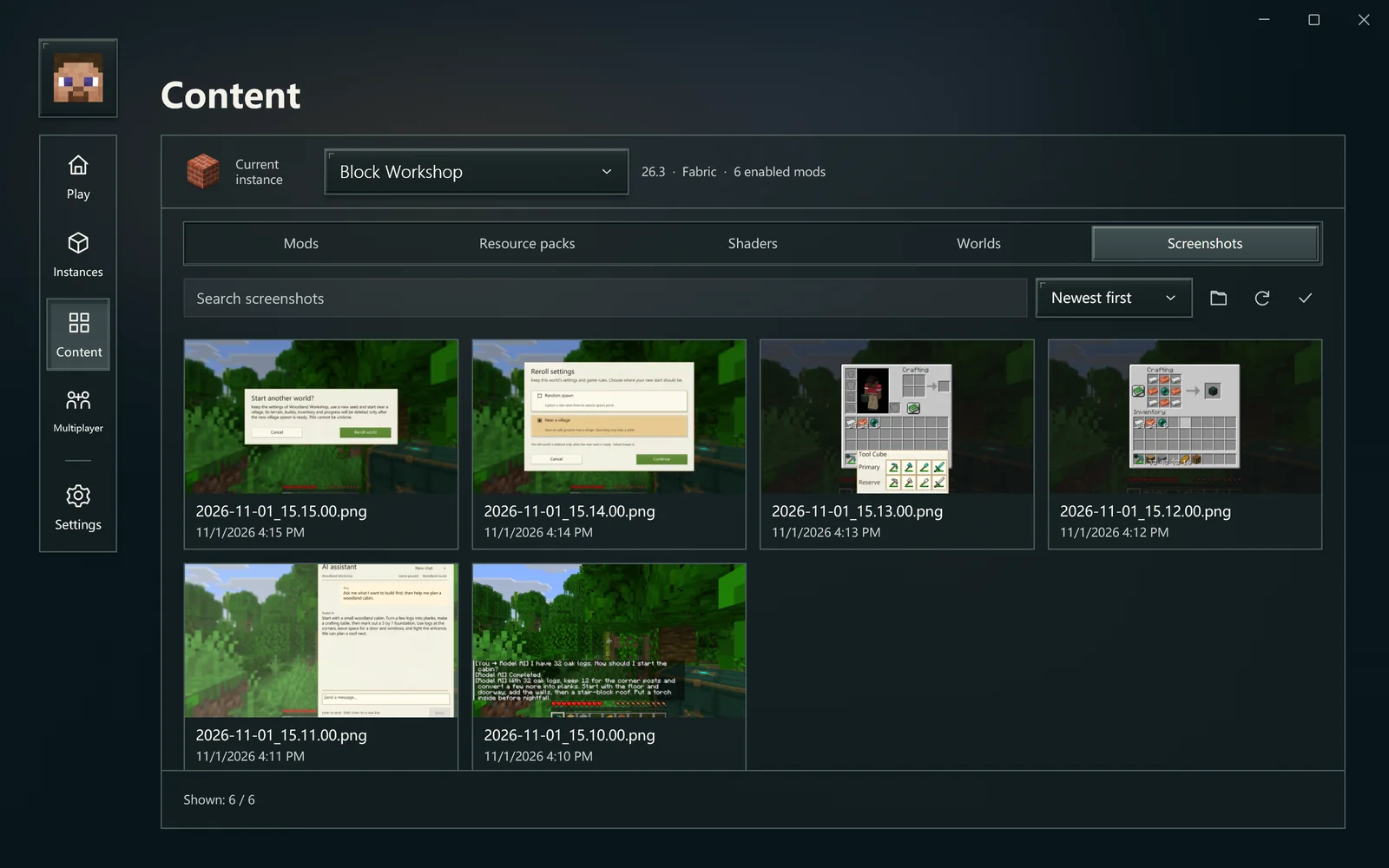
Uniform thumbnail crops do not change the original images.
Browse, search and open
Search using part of a filename. Newest first is the default; choose oldest first or filename order when useful. Time ordering uses the file's modification time.
Thumbnails use a centered 16:9 crop. The original dimensions and contents remain unchanged. Double-click opens the image in Windows' default image viewer; RMCL does not add a separate full-size image editor.
| Action | Result |
|---|---|
| Click | Select without opening |
| Ctrl + click | Add or remove one selected image |
| Shift + click | Select a range in the current display order |
| Ctrl+A | With gallery focus, select all current results; press again to clear |
| Space / Enter | During keyboard navigation, select / open the focused image |
Ctrl+A in the search box still selects text. Use the footer to export or delete a selection in bulk. Clearing a selection does not delete files.
Copy, rename and export
Right-click or long-press an image to open its menu:
- Copy image places image content on the clipboard for applications that accept it.
- Copy files copies that single file for pasting into folders or applications that accept attachments.
- Rename screenshot changes its filename without overwriting an existing file.
- Export copies copies the original into a chosen folder. The source remains, and the cropped thumbnail is not used as the exported image.
- Show in folder locates the file in File Explorer.
A batch export may partly fail, for example when a destination already has the same filename. Check completed items and failure reasons, then handle the remaining images rather than overwriting successful copies.
Delete and recover
The confirmation offers Move to Recycle Bin, Delete permanently and Cancel. Prefer the Recycle Bin so accidental deletion can be recovered through Windows.
If another application changed or locked a file, resolve the reported problem, refresh and select it again. Screenshot management does not require exiting Minecraft, but cannot bypass actual file locks.
Before sharing
Check for chat, server addresses, coordinates, player names or other information you do not want public. Share only necessary images when reporting a problem; see Feedback and logs.